
Vulnlab - VulnEscape Writeup
👾 Machine Overview
This is a writeup of the machine VulnEscape from VulnLab (now HTB), it’s an easy difficulty Windows machine that’s focused on Kiosk breakouts. This box was a lot of fun; had real-world applications to engagements that I’ve been on, and I enjoyed how unique it was.
🔍 Enumeration
An initial scan of the host gave the following results:
1 | naabu -host 10.129.234.51 |
Only RDP is open.
💥 Breakout
When we hit the machine over RDP, it’s accessible without credentials.
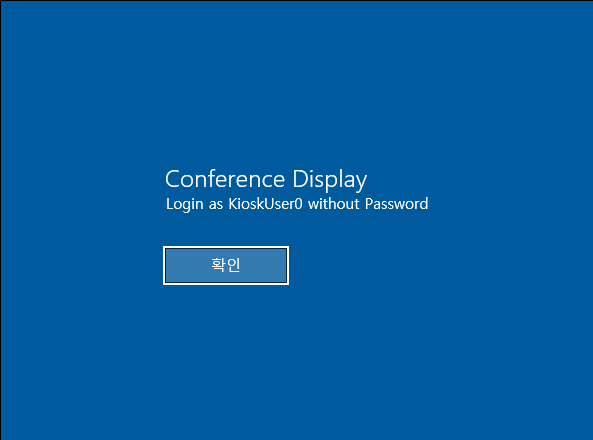
After clicking OK we’re granted access to Windows in kiosk mode as KioskUser0.
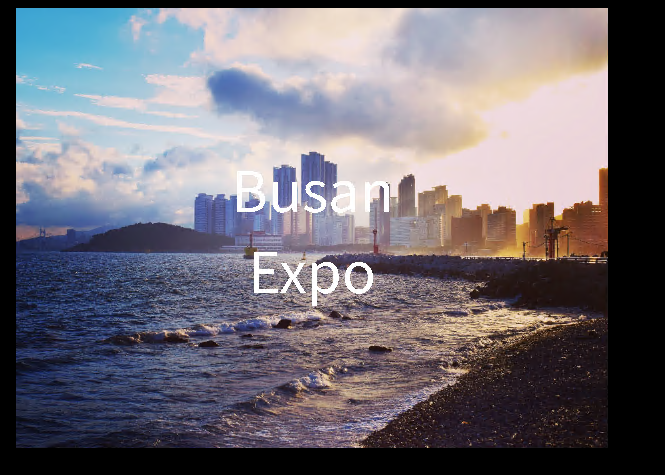
We’re greeted with just a background, we can’t use Win+R, and there’s no taskbar.
Windows kiosk mode is typically used to build restricted user experiences for machines that are meant to be publicly accessible, with limited functionality. This is used in workflows like hotel checkin kiosks, or restaurant ordering kiosks.
There are two main kiosk modes: single-app, and restricted user experience. A single-app kiosk runs a single app in full-screen, when the kiosk account signs in the app launches automatically. With assigned access, this can be used to launch an app above the lockscreen. The other main kiosk mode is restricted user experience where users are provided a restricted desktop environment.
It looks like we’re in a restricted user experience kiosk. Playing around with different key combinations I was able to use Ctrl+N / Ctrl+O to open windows explorer. I found this great blog about kiosk breakouts with edge that was very helpful during this box.
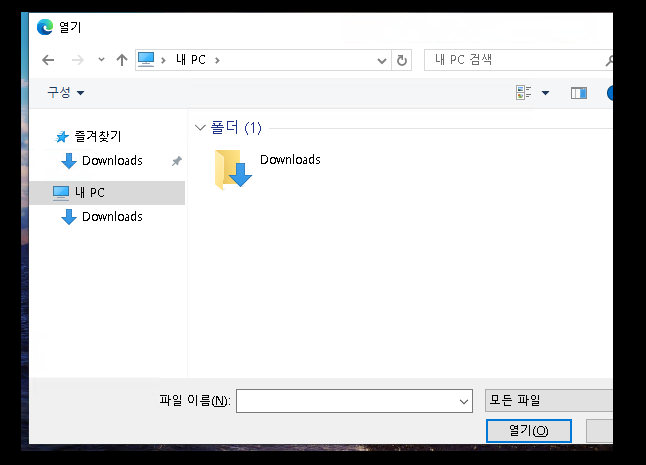
With explorer open, we can type msedge.exe in the filebar to open Edge. The first thing I did was change the language to English at edge://settings/languages.
Now that I could read, I started poking around the filesystem to try and find the flag, or any kind of secret that could lead us to something of interest. Typing file:// into the URL bar lets us use edge to browse the filesystem, evading the typical controls seen in Explorer. Sometimes, you can use edge to launch a command prompt, but I was unable to get that to work here.
I was able to nab the flag from KioskUser0’s desktop.

👀 RDP+
Poking around the filesystem, I found an interesting C:\_admin directory accessible to our user which contained an XML profile for Remote Desktop Plus.
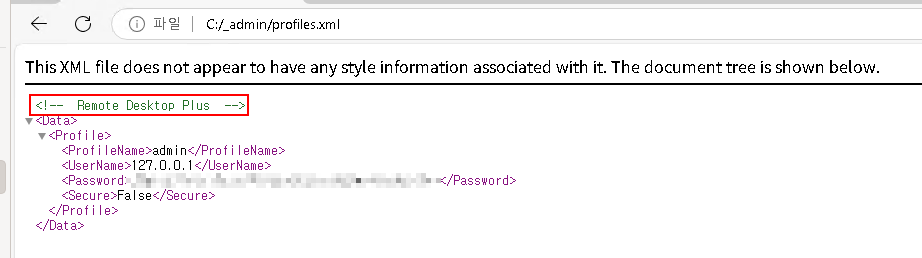
My first thought was to try and load the file into RDP+ to see if it’ll allow us to view the credentials. If unsuccessful we can try viewing the credentials in memory using something like BulletsPassView, or reversing the app to determine how credentials are encrypted.
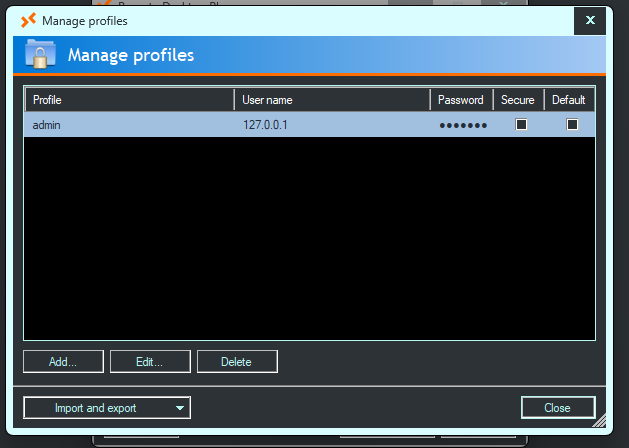
RDP+ does redact credentials in the app, but I was able to pull them from memory with BulletsPassView.
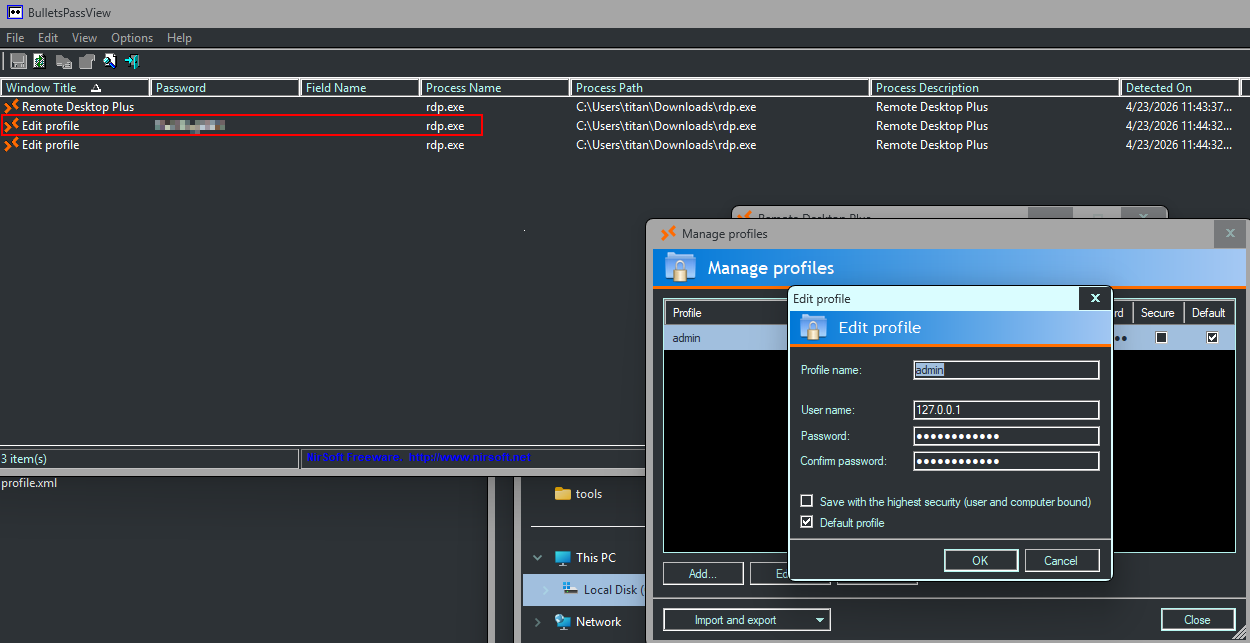
This gives us the credentials for the admin user, but I wasn’t able to use them to login with RDP.
🖥 Code Execution as Admin
Since we can’t login over RDP as admin, my next thought was to try and start a runas. I used one of the techniques outlined in NVISO Labs’ blog to get code execution through edge. They outline a method to enable IE explorer mode in edge, and create a webshell with JavaScript.
First I had to go to edge://settings/defaultBrowser and enable internet explorer compatibility for foo.html, where I’ll save my payload.
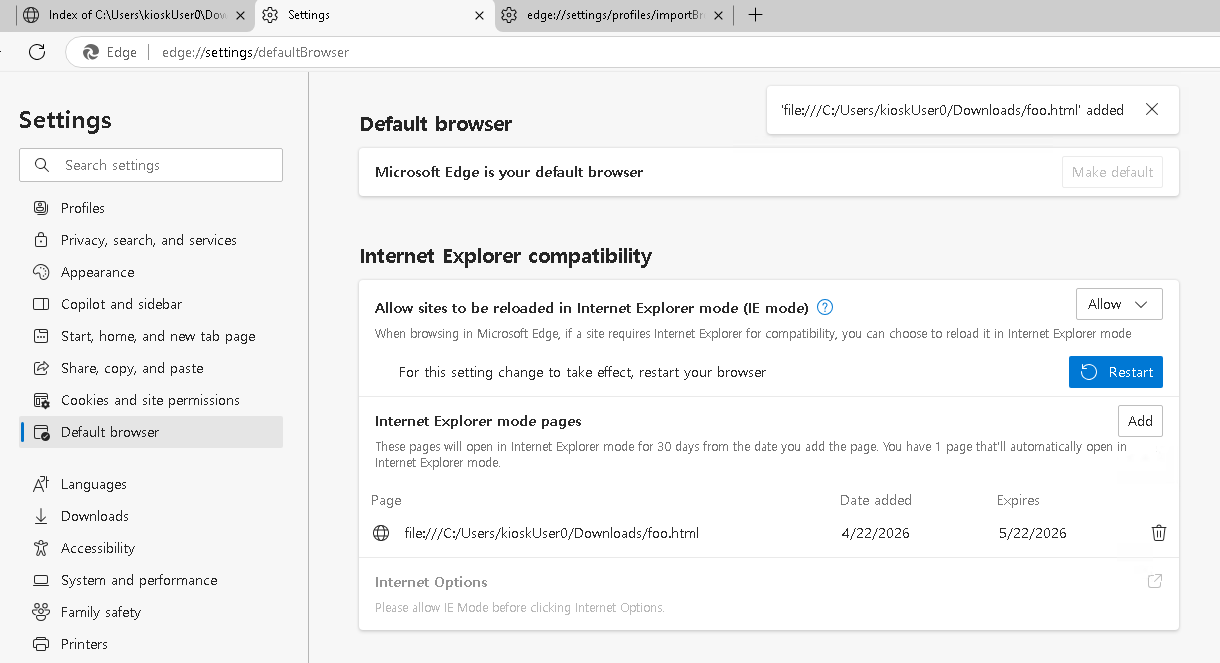
Next I browsed to the edge homepage, opened up the developer console, and changed the HTML to the following:
1 | <script> |
Then, I used Ctrl+S to save the file as C:\Users\KioskUser0\Downloads\foo.html, which was set to use IE compatibility mode in Edge.
Browsing to the page, we have to click through some popups to allow blocked content, but it works as a shell:
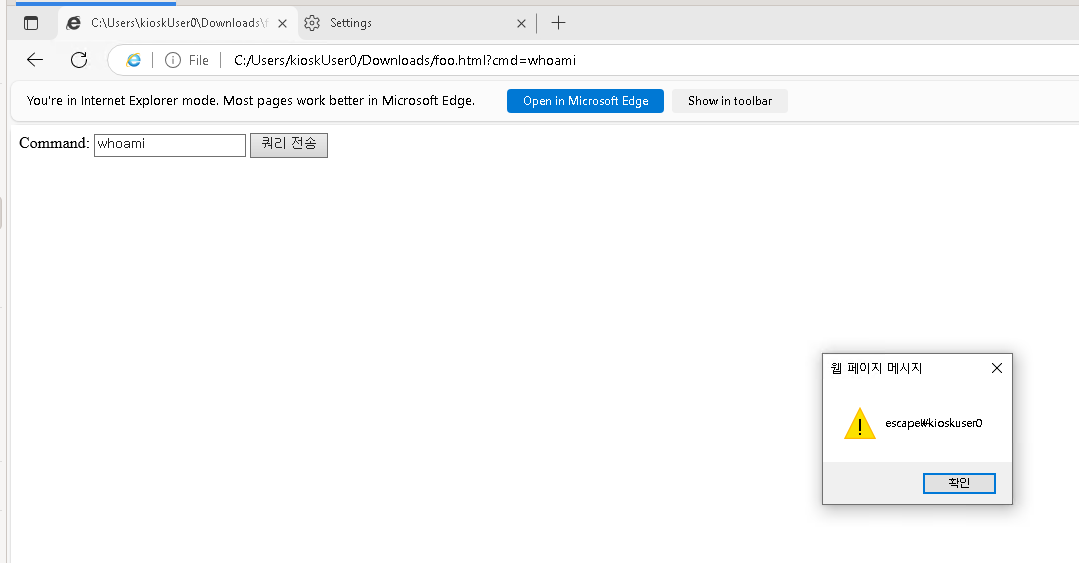
I used this to launch a new PowerShell window as the kiosk user, then I used runas /user:admin powershell.exe to start a new process as the admin user.
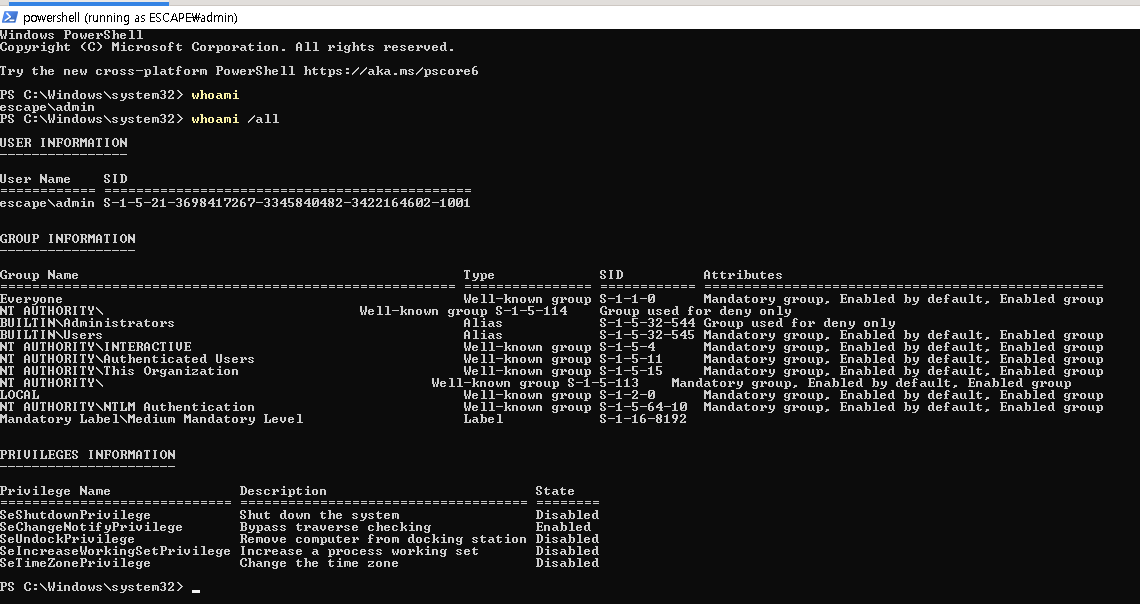
This worked, but we weren’t in a high-integrity/admin process, so I ran Start-Process powershell -Verb RunAs to allow us to nab the flag.
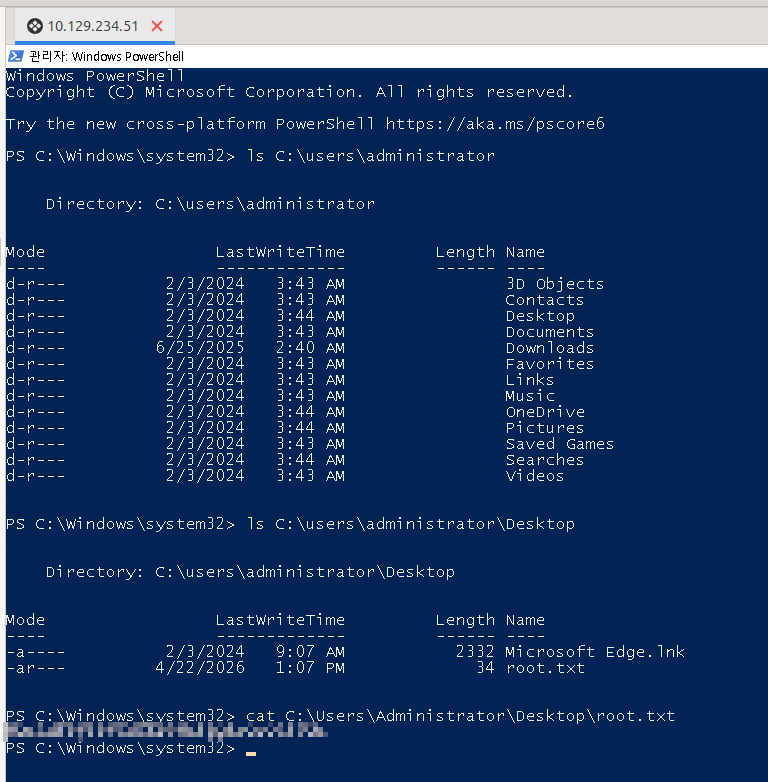
Yippee!
📖 Resources
| 🔗 Hyperlink | ℹ️ Info |
|---|---|
| Microsoft Learn | Windows Kiosk Mode Docs |
| NVISO Labs | Windows Kiosk Breakout Blog |
| My Notes :) | Kiosk Breakout Notes |
- Title: Vulnlab - VulnEscape Writeup
- Author: Liam Geyer
- Created at : 2026-06-06 00:00:00
- Updated at : 2026-06-27 19:19:45
- Link: https://lfgberg.org/2026/06/06/vulnlab/vulnescape/
- License: This work is licensed under CC BY-NC-SA 4.0.